Settings
Open Settings with Cmd/Ctrl , or the ⚙️ icon in the sidebar rail.
General
Core behaviour for how Curlex sends requests and displays the UI.
| Setting | What it does |
|---|---|
| Theme | Switch between Dark, Light, or follow your System setting |
| Layout | Choose whether the request and response panels sit side by side (Vertical) or stacked (Horizontal). Vertical is best on wide monitors. |
| Request Timeout | How long Curlex waits for a response before giving up, in milliseconds. Set to 0 to wait indefinitely. |
| Follow Redirects | When the server replies with a redirect (3xx), automatically follow it to the final destination. |
| Max Redirects | How many redirects to follow before stopping. 0 means unlimited. |
| Font Family | The font used in all code editors — body editor, response viewer, script editor. |
| Font Size | Size in pixels for editor text. |
| No-Cache Header | Adds Cache-Control: no-cache and Pragma: no-cache to every request. Useful when testing endpoints that might otherwise return a cached response. |
| Correlation ID | Adds a unique Curlex-Correlation-ID UUID header to every request, making it easy to trace a specific request in server logs. |
| Discard Unsaved Changes | When enabled, closing a tab discards changes without prompting to save. |
Themes
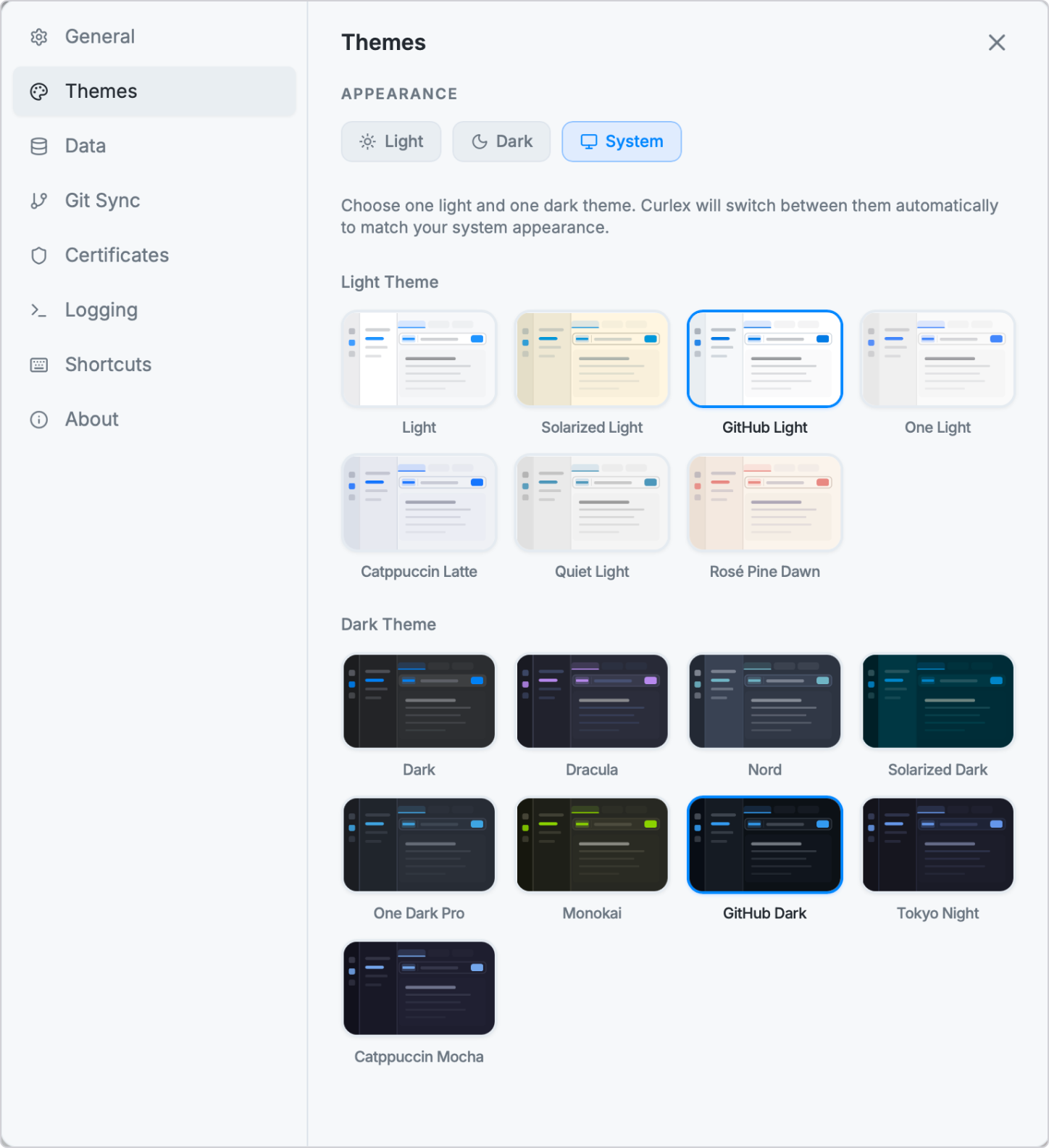
Choose a colour theme from the built-in set. Options include light and dark variants. Select System to automatically follow your operating system's appearance preference — it switches when macOS or Windows switches.
Certificates
Add client TLS certificates for APIs that require mutual TLS (mTLS). Each certificate is associated with a specific hostname — Curlex presents the correct certificate automatically for requests to that domain.
Adding a certificate:
- Click + Add Certificate.
- Enter the hostname (e.g.
api.internal.company.com). - Upload the certificate file — supported formats:
.pem,.p12,.pfx. - If the certificate requires a passphrase, enter it.
- Save.
You can also configure a custom CA bundle here for self-signed certificates.
Git Sync
Configure the local Git repository path, optional remote URL, sync branch, and sync interval. See the full Git Sync guide for step-by-step setup.
Logging
Control how much detail the Console captures:
| Level | What is logged |
|---|---|
| TRACE | Everything — TLS details, low-level timing, all headers |
| INFO | Normal request/response activity (default) |
| WARN | Redirects, retries, and non-critical issues only |
| ERROR | Failures only |
Increase the level to get more detail when debugging. Lower it to reduce noise in normal use.
Shortcuts
A visual reference card showing every keyboard shortcut. See the full Keyboard Shortcuts page.
About
Shows the currently installed version of Curlex. Use this to check whether you are on the latest version and to trigger a manual update check.