Request History
Curlex automatically records every request you send in a chronological history log. You do not need to save a request to a collection to be able to find and replay it later.
Opening History
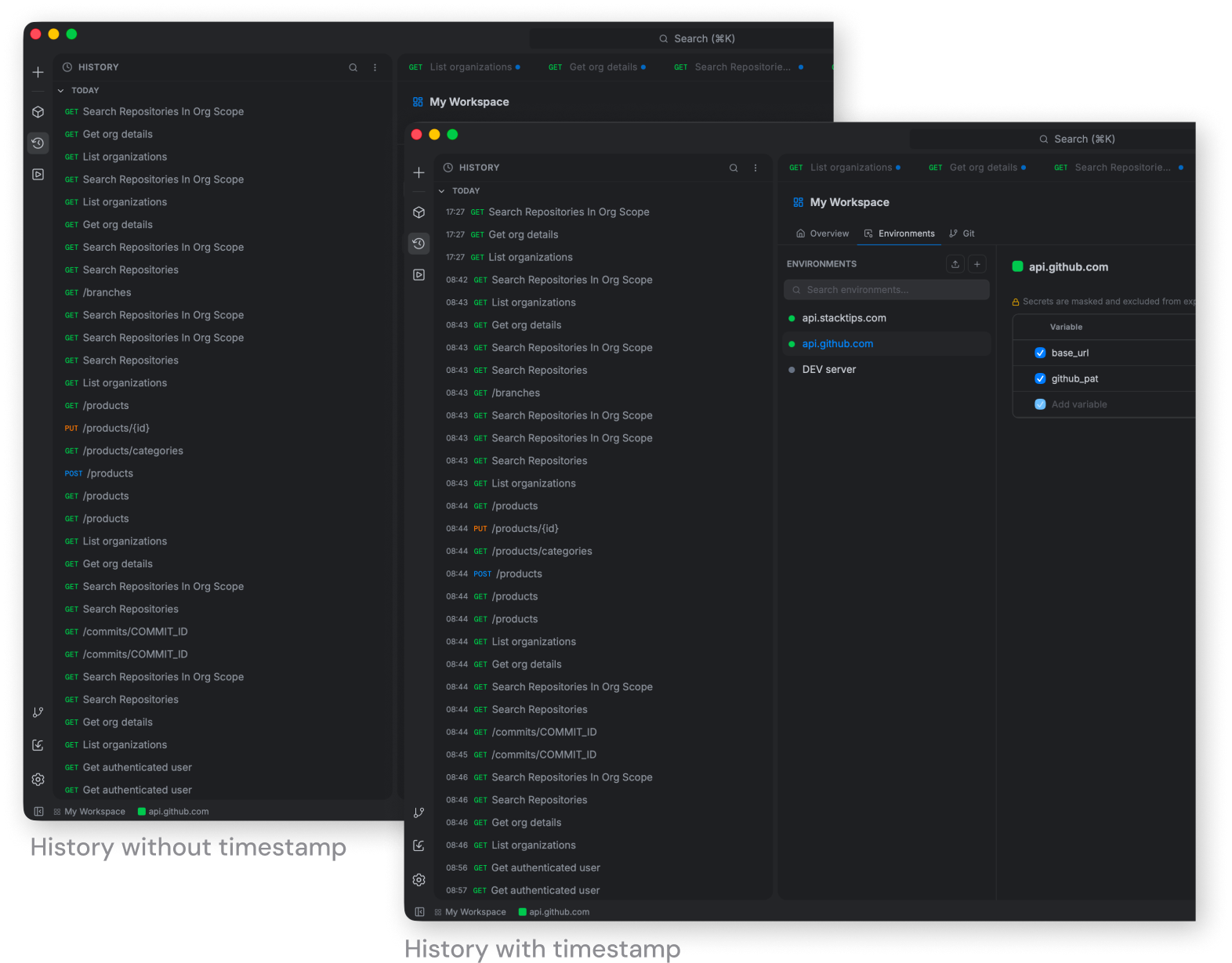
Click the History icon (clock) in the sidebar rail. The history panel shows your most recent requests, newest at the top.
What History Shows
Each entry displays:
- The HTTP method, colour-coded (GET in blue, POST in green, etc.)
- The request name or URL
- When the request was sent
Replaying a Request
Click any history entry to open it in a new tab, exactly as it was when you sent it — the same method, URL, headers, body, and auth settings. Click Send to run it again.
Searching History
Use the search box at the top of the history panel to filter entries by request name or URL. The list narrows in real time as you type.
Saving a History Entry to a Collection
If you sent a request ad-hoc and want to keep it, open it from history and press Cmd/Ctrl S to save it into a collection — the same as saving any other request.
History Limits and Scope
- History retains the last 50 requests per workspace.
- History is workspace-scoped — each workspace has its own separate log. Switching workspaces shows only that workspace's history.
- History is stored locally and persists across app restarts.
- History entries are included in Git Sync backups.